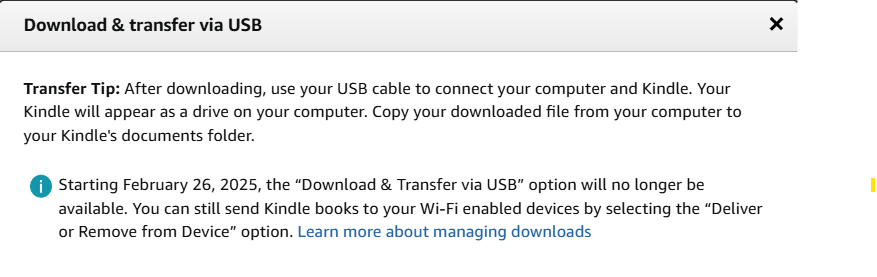
If you try to download a Kindle book to you a USB, you get a popup message from Amazon that says, “Starting February 27, 2025, the “Download & Transfer to USB” option will no longer be available. You can still send Kindle books to your Wi-Fi enabled devices by selecting the “Deliver or Remove from Device” option.” This means you can no longer download your ebooks to your computer or USB. Your only option will be to another Kindle device.
After many buyers of the book, 1984, found the book removed from their Kindle library, many are advising to preserve your ebooks and download your Kindle library before February 26.
Downloading is pretty easy but there are three things that make it time consuming:
- There is no mass download option, so you have to download one book at a time. If you have a lot of ebooks, this can take some time. However, the actual download is really quick, literally seconds.
- Where in the world did Kindle save your downloads! It took me some time and a lot of Googling, but I found it! They are located here: c:\Users\YourComputerUser name\Documents\My Kindle Content.
- The last hurdle is Kindle doesn’t save it as the name of the book but some random letters and numbers, which may make since to Kindle but not the average user (e.g., B00JD1PWTG_EBOK).
Still interested in downloading your Kindle ebooks? Here’s how:
- Download the Kindle for PC app.
- Register the app.
- Once you do this, your books should be showing in your library.
- Click the title of the book.
- Select the ellipsis (the three vertical dots).
- Click “Download”.
- Your ebook should now be in your folder, My Kindle Content.
 DSM Bargain Hunter
Leave a comment